
Clipboard manager for power users.
Full clipboard history, folders, fuzzy search and smart paste. A global hotkey summons it from any app — no mouse, no mode switching.
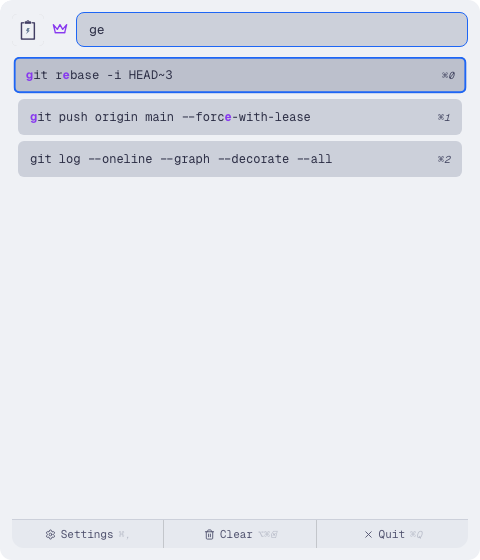
Find any clip in milliseconds.
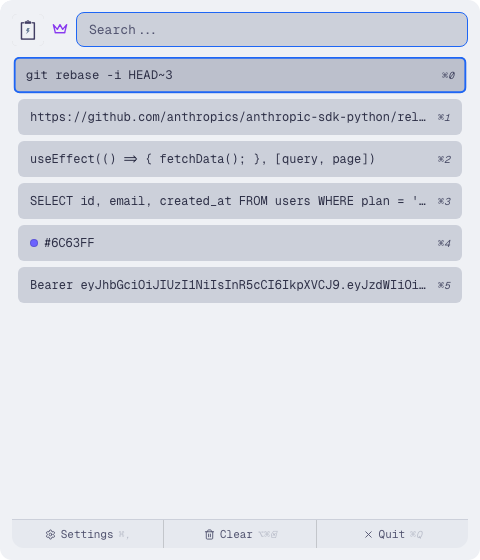
Every copy, right where you need it.
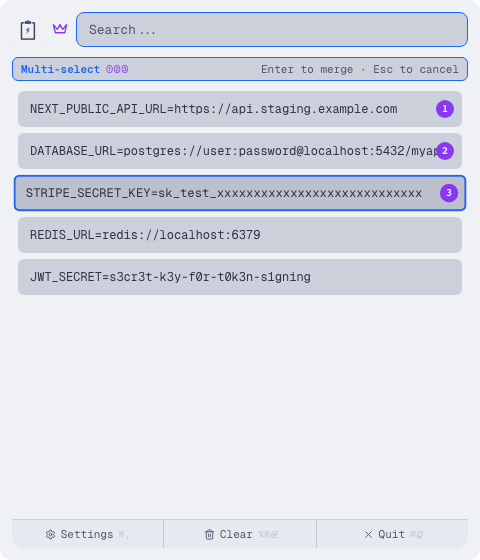
Merge up to five clips into one paste.
Every copy, right where you need it.
Kurippa silently captures every text, image, and rich-text copy you make and keeps them in a searchable list. Summon the full history in under 80 ms with a single hotkey — no Dock icon, no interruption.
- Captures text, RTF, and images automatically
- Configurable limit: 100 / 500 / 1,000 / Unlimited
- Shows source app, relative time, and character count
Find any clip in milliseconds.
Type in the search bar and Kurippa performs a fuzzy match across your entire history in real time. Matched characters are highlighted in bold so you can spot the right item at a glance. The list narrows as you type — no Enter key required.
- Real-time fuzzy matching across all history
- Match characters highlighted inline
- Works across text, RTF, and image filenames
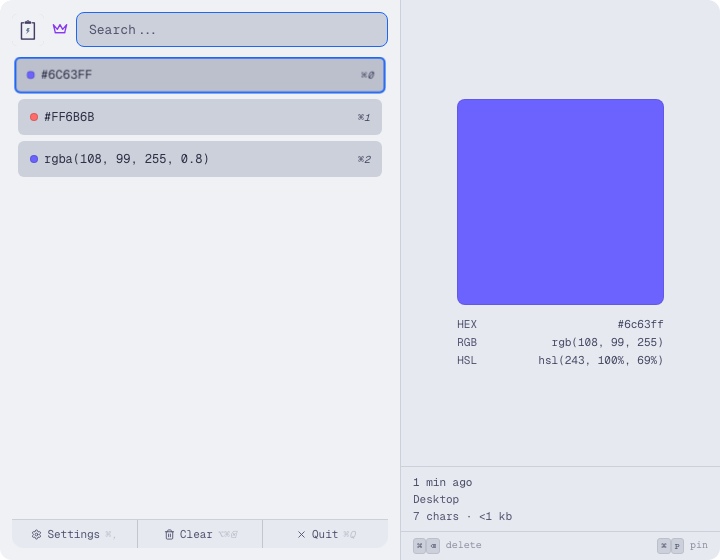
Colors recognised and shown as swatches.
Whenever you copy a CSS color value — HEX, RGB, HSL, or RGBA — Kurippa automatically detects it and replaces the plain text preview with a large color swatch. The detail panel shows all three formats side by side so you can pick the representation you need.
- Detects HEX, RGB, RGBA, HSL, and HSLA formats
- Large swatch preview in the detail panel
- Shows HEX, RGB, and HSL representations simultaneously
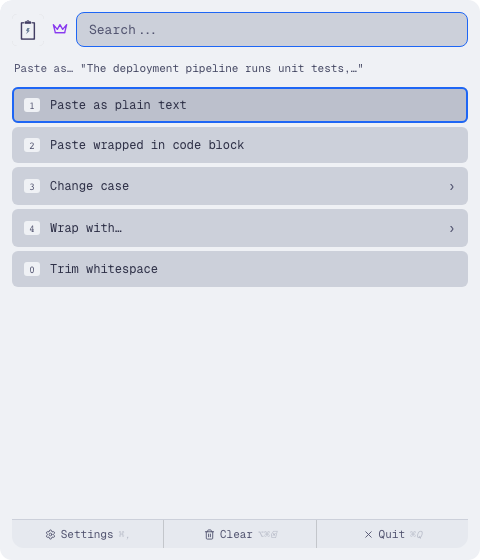
Transform text before it hits the cursor.
Press Shift+Enter on any item to open the Paste As menu, which offers context-aware transformations before pasting. Change case, wrap in quotes or brackets, join or number lines, strip whitespace, convert colors between formats, or turn URLs into Markdown links — all without leaving the keyboard.
- Case transforms: UPPER, lower, Title, camel, snake, slug
- Wrap in quotes, backticks, brackets, or braces
- URL-to-Markdown, color format conversion, code-block wrap
Merge up to five clips into one paste.
Hold a modifier key to enter multi-select mode and pick up to five history items. On confirm, Kurippa merges them with your chosen separator — newline, space, or comma — and pastes the combined result in one shot.
- Select up to 5 items in order with numbered badges
- Merge with newline, space, or comma separator
- Separator remembered as your default for next time
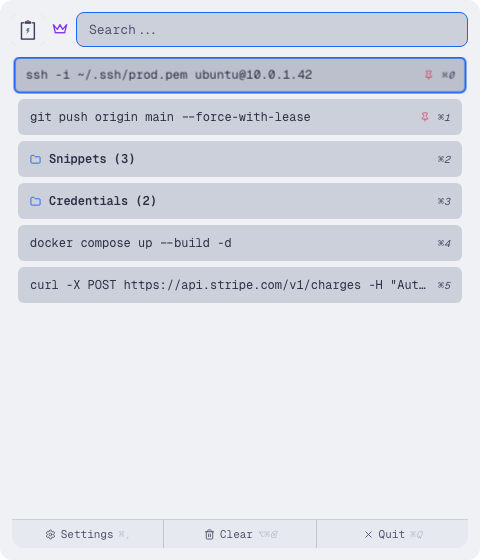
Organise clips you reach for every day.
Pin frequently used items so they float to the top of the list and survive auto-clear. Create named folders to group related clips — credentials, snippets, templates — and move items between them with a keyboard-driven folder picker.
- Pin items to keep them at the top permanently
- Create and rename folders for thematic grouping
- Keyboard-driven folder picker with instant navigation
Setup
- 01
Open the app (Gatekeeper bypass)
Right-click
Kurippa.app→ Open → click Open in the dialog. macOS blocks unsigned apps by default; this is a one-time step. - 02
Grant permissions (guided on first launch)
Kurippa will walk you through Accessibility and Input Monitoring on first launch. To re-enable manually if needed:
- System Preferences → Privacy & Security → Accessibility → enable Kurippa
- System Preferences → Privacy & Security → Input Monitoring → enable Kurippa
- 03
Enable launch at login
System Preferences → General → Login Items → add Kurippa.
Windows setup guide coming soon.
FAQ
Is this a subscription?
No. $15 is a one-time payment. You own it permanently, including all future updates.
Where is my clipboard data stored?
On your device only. Kurippa never connects to the internet. Your clipboard history lives on your machine and nowhere else.
Does Kurippa run in the background all the time?
Yes, it runs as a menu bar app with minimal footprint. It uses no noticeable CPU or memory when idle — just sits quietly until you need it.